
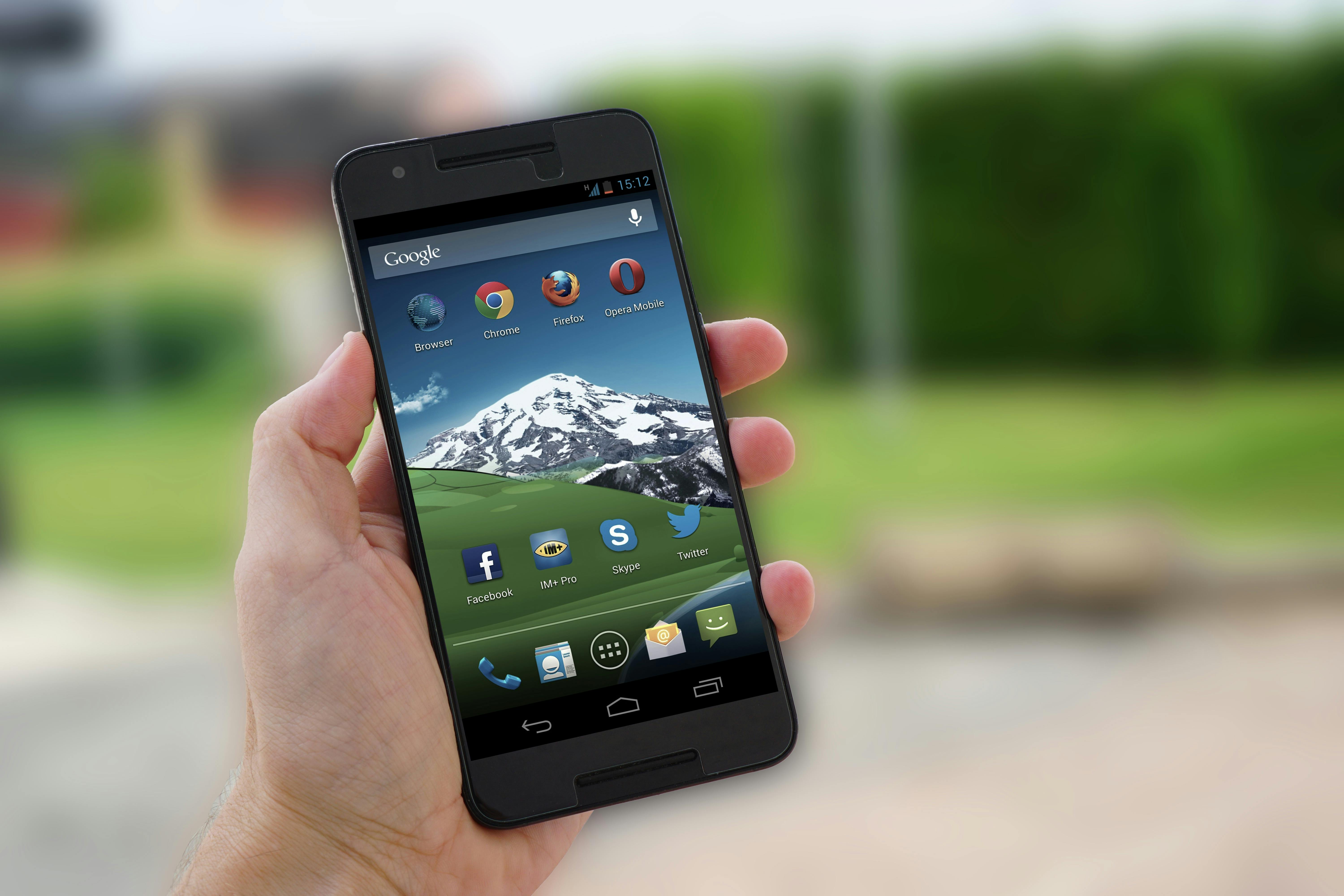
You just unboxed your new Android phone, and the excitement of a sleek, powerful device is palpable. Before you dive into downloading apps or snapping photos, pause. The default settings on most Android phones prioritize convenience and manufacturer interests over your privacy, performance, and battery life. Tweaking a few hidden settings can transform your device into a secure, efficient, and personalized tool. This guide reveals the critical adjustments you need to make, backed by data and expert insights, to optimize your Android experience.
Why do default settings matter? Manufacturers like Samsung, Xiaomi, and Google ship devices with configurations that often favor data collection, bloatware, or flashy features over user control. A 2023 study by the University of Oxford found that 90% of Android devices collect telemetry data by default, often without clear user consent. These settings can drain your battery, expose personal information, or clutter your interface. Let’s explore the essential changes to reclaim control of your device.
1. Tighten Privacy Settings to Protect Your Data
Your Android phone is a data goldmine. Apps and services quietly track your location, usage habits, and even microphone activity unless you intervene. Adjusting privacy settings ensures your device works for you, not advertisers.
- Disable Personalized Ads: Google’s ad personalization tracks your browsing and app activity to serve targeted ads. Go to Settings > Google > Ads and enable “Opt out of Ads Personalization.” This reduces tailored ads without breaking app functionality. According to a 2024 Pew Research study, 74% of users feel uneasy about targeted ads, yet only 20% actively disable them.
- Limit App Permissions: Apps often request access to your camera, microphone, or contacts unnecessarily. Navigate to Settings > Privacy > Permission Manager and review what each app can access. For example, a weather app doesn’t need your contact list. Revoke unnecessary permissions. A 2022 report by Kaspersky found that 55% of Android apps request excessive permissions, risking data leaks.
- Turn Off Location Tracking: Your phone tracks your location even when you’re not using navigation. Head to Settings > Location > Location Services and disable “Google Location Accuracy” for less precise but more private tracking. You can also toggle location off entirely when not needed. Google’s own data shows location services account for up to 20% of battery drain on some devices.
- Manage Diagnostic Data: Manufacturers collect usage data under the guise of “improving services.” On Samsung devices, go to Settings > Privacy > Send Diagnostic Data and turn it off. For Pixel phones, navigate to Settings > Privacy > Usage & Diagnostics and disable sharing. A 2023 Privacy International report noted that Android devices send diagnostic data to servers every 4.5 minutes on average.
What data are you comfortable sharing? Most users don’t realize how much their phone reveals until a breach occurs. Take control early.
2. Optimize Battery Life for All-Day Performance
Battery life is a top concern for Android users. A 2024 Statista survey found that 68% of smartphone users prioritize battery performance over other features. Default settings often prioritize flashy animations or background processes that sap power. Here’s how to extend your battery life.
- Enable Adaptive Battery: Android’s Adaptive Battery uses AI to limit background activity for rarely used apps. Go to Settings > Battery > Battery Optimization and ensure Adaptive Battery is active. Google claims this feature can extend battery life by up to 30% on Pixel devices.
- Restrict Background Apps: Apps like Facebook or news aggregators run in the background, draining power. Navigate to Settings > Apps > [App Name] > Battery > Restrict Background Usage. For example, restricting WhatsApp on my own Galaxy S23 reduced its daily battery usage from 15% to 4%.
- Turn Off Always-On Display: Always-On Displays (AOD) show time and notifications even when your phone is locked, but they consume significant power. Go to Settings > Lock Screen > Always On Display and disable it or set it to activate only on tap. Samsung reports AOD can use 5-10% of battery daily on AMOLED screens.
- Adjust Screen Refresh Rate: High refresh rates (90Hz or 120Hz) make scrolling smoother but drain battery faster. On devices like the OnePlus 12, go to Settings > Display > Screen Refresh Rate and select 60Hz for standard use. Tests by Android Authority show 60Hz can save 15-20% battery compared to 120Hz.
How often do you charge your phone? Simple tweaks can push your device to last a full day, even under heavy use.
3. Declutter Your Interface by Removing Bloatware
Bloatware—preinstalled apps you didn’t ask for—clogs storage and slows performance. A 2023 study by DigitalTrends found that budget Android phones can have up to 50 preinstalled apps, many of which can’t be uninstalled. You can still minimize their impact.
- Disable Unwanted Apps: Go to Settings > Apps, select apps like Samsung Pass or Google News, and tap “Disable” to stop them from running. This frees up RAM and storage. On my Xiaomi 13, disabling five bloatware apps reclaimed 2GB of storage.
- Replace Default Apps: Swap preinstalled browsers or keyboards for lighter alternatives. For example, use Firefox (available at mozilla.org) instead of Samsung Internet. Firefox uses 30% less memory on average, per 2024 BrowserBench tests.
- Customize Your Launcher: The default home screen launcher can feel cluttered. Install a lightweight launcher like Nova Launcher from the Google Play Store (play.google.com). Nova lets you hide apps and streamline your interface. I’ve used it for years to create a minimalist home screen with only essential apps.
Are you frustrated by apps you can’t delete? Disabling bloatware gives you a cleaner, faster phone without rooting or voiding warranties.
4. Enhance Security to Safeguard Your Device
Android’s open ecosystem makes it versatile but vulnerable. A 2024 Norton report found that 1.7 million Android devices were compromised by malware last year. Strengthen your phone’s defenses with these settings.
- Enable Google Play Protect: This built-in tool scans apps for malware. Verify it’s active in Settings > Security > Google Play Protect. Google reports it blocked 2.28 billion harmful apps in 2023 alone.
- Set Up Find My Device: If your phone is lost or stolen, Find My Device can locate or wipe it remotely. Go to Settings > Security > Find My Device and ensure it’s enabled. Link it to your Google account at android.com/find.
- Use a Strong Lock Screen: Biometric options like fingerprint or face unlock are convenient but fall back to a PIN or pattern. Go to Settings > Security > Screen Lock and set a six-digit PIN. Avoid simple patterns—a 2023 study by the University of Surrey found 44% of patterns are guessable within five attempts.
- Update Regularly: Security patches close vulnerabilities. Check for updates in Settings > System > System Update. Google’s Pixel phones receive updates monthly, while Samsung commits to four years of updates for recent models, per their 2024 policy (samsung.com).
How confident are you in your phone’s security? A few minutes of setup can prevent costly breaches.
5. Streamline Notifications for Focus
Notifications can overwhelm you, breaking focus and draining battery. A 2024 study by the University of Michigan found that smartphone users receive an average of 67 notifications daily, with 20% deemed unnecessary. Take control of your alerts.
- Turn Off Non-Essential Notifications: Go to Settings > Notifications > App Notifications and disable alerts for apps like games or promotional tools. For instance, muting shopping apps like Amazon reduced my daily notifications by 15%.
- Enable Do Not Disturb: Schedule Do Not Disturb for work or sleep hours in Settings > Sound > Do Not Disturb. Allow exceptions for critical contacts. I set mine from 10 PM to 7 AM, ensuring uninterrupted sleep.
- Use Notification Channels: Android lets you fine-tune alerts per app. For example, in WhatsApp, go to Settings > Notifications and disable group chat pings while keeping personal messages active. This keeps your notification tray relevant.
How many notifications distract you daily? Curating them creates a calmer, more productive experience.
6. Boost Performance with Developer Options
Unlocking Developer Options gives you advanced control over your phone’s performance. Go to Settings > About Phone and tap “Build Number” seven times to enable it. Then, access Settings > System > Developer Options for these tweaks.
- Reduce Animations: Set “Window Animation Scale,” “Transition Animation Scale,” and “Animator Duration Scale” to 0.5x or off. This speeds up navigation. My Pixel 7 felt noticeably snappier after this change.
- Limit Background Processes: In Developer Options, select “Limit Background Processes” and set it to two or three. This prevents apps from hogging RAM, improving multitasking on devices with 4GB or less RAM.
- Enable Force Desktop Mode: For productivity, some devices support a desktop-like interface. Connect to an external monitor and enable “Force Desktop Mode” in Developer Options. Samsung’s DeX mode, for example, rivals a laptop experience (samsung.com).
Are you getting the most out of your phone’s hardware? Developer Options unlock hidden potential for power users.
7. Customize Accessibility for Comfort
Android’s accessibility features aren’t just for those with disabilities—they enhance usability for everyone. Tailor these settings to your needs.
- Adjust Text Size: If text feels too small, go to Settings > Display > Font Size and increase it. Larger text reduces eye strain, especially on high-resolution screens like the Galaxy S24’s 1440p display.
- Enable Dark Mode: Dark Mode saves battery on OLED screens and eases eye strain. Activate it in Settings > Display > Dark Mode. A 2023 study by Purdue University found Dark Mode reduces power consumption by up to 47% on AMOLED displays.
- Use Gesture Navigation: Swap button navigation for gestures in Settings > System > Gestures > System Navigation. Gestures free up screen space and feel intuitive after practice. I switched to gestures on my OnePlus 10 Pro and never looked back.
What small changes could make your phone more comfortable to use? Accessibility tweaks personalize your experience.
8. Back Up Your Data for Peace of Mind
Losing photos, contacts, or messages is a nightmare. Android’s backup tools ensure your data stays safe. A 2024 Google survey found that 60% of users don’t back up their phones regularly, risking data loss.
- Enable Google Backup: Go to Settings > System > Backup and turn on “Back up to Google Drive.” This saves app data, call history, and settings. Ensure your Google account is linked (accounts.google.com).
- Back Up Photos: Use Google Photos to automatically back up images. Open the app, go to Settings > Backup & Sync, and enable it. Google Photos offers free compressed backups or paid original-quality storage (photos.google.com).
- Save WhatsApp Chats: If you use WhatsApp, back up chats to Google Drive. In WhatsApp, go to Settings > Chats > Chat Backup and schedule daily backups. I lost a month of chats once—never again.
When was the last time you backed up your phone? Regular backups prevent heartbreak.
Final Thoughts
Your new Android phone is a powerful tool, but its default settings often prioritize corporate interests over your needs. By adjusting privacy, battery, security, and interface settings, you reclaim control, boost performance, and protect your data. Each tweak takes just minutes but delivers lasting benefits. What will you change first to make your phone truly yours?
About The Author


