
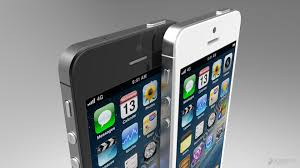
In a world where smartphones dominate our daily routines, Apple’s iPhone stands out as a powerful device packed with features. But here’s the kicker: even the most seasoned iPhone users often overlook some of its most ingenious functionalities. These aren’t just tips to save battery life or organize your apps—we’re diving into game-changing hacks that can transform the way you use your iPhone. Prepare to be amazed by what your device can actually do.
1. Back Tap: A Hidden Shortcut System
Introduced in iOS 14, Back Tap is a customizable feature that turns the back of your iPhone into a touch-sensitive button. You can assign a double-tap or triple-tap to perform various actions, from taking screenshots to activating Siri.
How to Enable Back Tap:
- Go to Settings > Accessibility > Touch.
- Scroll down and select Back Tap.
- Assign actions to Double Tap and Triple Tap options.
Example Use Case: Imagine being able to mute your phone during a meeting or launch your camera app for quick shots without even unlocking your phone. It’s convenience redefined.
2. Measure Objects with Augmented Reality (AR)
Did you know your iPhone can replace a tape measure? Using the built-in Measure app, you can calculate dimensions of real-world objects with augmented reality. This feature is especially handy for DIY projects or impromptu measurements.
How It Works:
- Open the Measure app.
- Point your camera at the object.
- Drag the dot to mark start and end points, and your iPhone will display the measurement.
The app’s accuracy has improved significantly in recent iOS updates. According to Apple, it’s accurate within a few millimeters when used correctly.
3. Create Custom Vibration Patterns
Ever wished your phone’s vibrations could give you a heads-up about who’s calling without checking the screen? iPhones allow you to create unique vibration patterns for specific contacts.
Steps to Create Custom Vibrations:
- Open Contacts and select a contact.
- Tap Edit, then select Ringtone or Text Tone.
- Choose Vibration > Create New Vibration.
- Tap the screen to record your custom vibration.
This hack is perfect for professionals who want to discreetly identify calls from clients or colleagues.
4. Hide Photos in a Secure Folder
We all have those photos we’d prefer to keep private. Instead of relying on third-party apps, your iPhone has a built-in option to hide photos securely.
How to Hide Photos:
- Select the photo(s) you want to hide.
- Tap the Share button and choose Hide.
- Hidden photos move to a “Hidden” album in the Photos app.
To enhance security, you can lock the Hidden album in iOS 16 and later:
- Go to Settings > Photos and toggle on Use Face ID/Touch ID.
5. The Secret Keyboard Trackpad
Editing text on a touchscreen can be frustrating, but iPhones have a secret keyboard trackpad feature that makes text navigation easier.
How to Activate It:
- Long-press the space bar on your keyboard.
- The keyboard turns into a trackpad, allowing you to move the cursor precisely.
This hack is a lifesaver for editing emails, documents, or lengthy text messages.
6. Use Siri to Announce Notifications
If you’re multitasking, Siri can read out your notifications so you don’t miss important updates.
How to Enable This Feature:
- Go to Settings > Siri & Search.
- Select Announce Notifications and toggle it on.
- Choose apps for which you want Siri to announce notifications.
This is particularly useful during workouts or when driving, ensuring you stay connected without being distracted.
7. Quick Notes with Apple Pencil on Lock Screen
For iPhone users with an iPad (and Apple Pencil), this hack is a productivity booster. You can take quick notes directly from the lock screen of your iPad, and the notes will sync with your iPhone via iCloud.
Steps to Enable Quick Notes:
- On your iPad, go to Settings > Notes > Access Notes from Lock Screen.
- Use your Apple Pencil to jot down notes without unlocking your device.
Your ideas will never be lost, and the synced notes are always accessible on your iPhone.
8. Automate Daily Tasks with Shortcuts
The Shortcuts app is an underutilized goldmine for automating repetitive tasks. Whether it’s sending a daily text, turning on Do Not Disturb at bedtime, or creating custom routines, Shortcuts has you covered.
Example Automation:
- Morning Routine: Create a shortcut that reads the weather, opens your calendar, and starts your favorite playlist with a single tap.
Pro Tip: Explore the Gallery tab in the Shortcuts app for pre-made workflows.
9. Lock Apps with Face ID or Touch ID
Privacy-conscious users will appreciate the ability to lock individual apps using Face ID or Touch ID.
How to Lock Apps:
- Go to Screen Time > App Limits.
- Set time limits for specific apps.
- Once the limit is reached, access requires Face ID or Touch ID.
While not a direct lock feature, it’s a clever workaround to add an extra layer of security.
10. Hidden Wi-Fi QR Code Sharing
Sharing your Wi-Fi password just got easier. iPhones let you generate a QR code for quick access.
Steps to Generate a Wi-Fi QR Code:
- Install a trusted QR code generator app.
- Input your Wi-Fi network name and password.
- Share the QR code with guests to connect seamlessly.
Alternatively, if your guest has an Apple device, you can simply bring your phones close, and the Wi-Fi credentials will transfer automatically.
11. Battery Health Management
Over time, batteries degrade, but iPhones offer a feature to extend their lifespan by optimizing charging habits.
How to Enable Optimized Battery Charging:
- Go to Settings > Battery > Battery Health.
- Toggle on Optimized Battery Charging.
This feature slows down charging when your phone reaches 80% and resumes closer to your wake-up time. According to Apple’s studies, this can significantly reduce battery wear.
12. Translate Conversations in Real-Time
With the built-in Translate app, you can have real-time conversations in different languages.
Steps to Use Translate:
- Open the Translate app and select the languages.
- Use Conversation Mode for real-time translation.
This feature supports over 20 languages and works offline if you download language packs in advance.
13. Advanced Screenshot Editing
Screenshots are more than just static images; iPhones allow you to edit them extensively.
Hidden Editing Features:
- Add shapes, text, or signatures.
- Use the magnifier tool to zoom in on details.
- Crop screenshots with precision.
Simply tap on the screenshot preview after capturing it to access these tools.
14. Use Your iPhone as a Document Scanner
Forget bulky scanners. The Notes app doubles as a high-quality document scanner.
How to Scan Documents:
- Open the Notes app and create a new note.
- Tap the camera icon and select Scan Documents.
- Adjust corners and save your scan.
This feature automatically detects edges and enhances readability.
15. Sound Recognition for Alerts
For users with hearing impairments or those in noisy environments, iPhones can recognize specific sounds like alarms, doorbells, or baby cries.
How to Enable Sound Recognition:
- Go to Settings > Accessibility > Sound Recognition.
- Toggle it on and select the sounds you want your phone to detect.
Once a sound is detected, your iPhone sends a notification to alert you.
Conclusion: Unleash the Full Potential of Your iPhone
The iPhone is much more than a smartphone; it’s a versatile tool capable of elevating your productivity, security, and overall experience. By mastering these lesser-known hacks, you’re not just using an iPhone—you’re unlocking its true potential. Try out these features today and discover how your device can work smarter, not harder.
About The Author


