
The global environmental movement currently suffers from a massive strategic error known as the fallacy of distance. You are conditioned to believe that biodiversity is a crisis occurring elsewhere—in the Amazonian canopy, the Arctic ice sheets, or the Great Barrier Reef. While these global landmarks are essential, your obsession with distant conservation allows the biological infrastructure of your own neighborhood to liquidate in silence. Global treaties and international non-governmental organizations operate with a level of abstraction that often fails to address the hyper-local tipping points that directly affect your property value, your health, and your regional food security. Local biodiversity is not a secondary concern. It is the primary operating system for your everyday life.
You pay for the degradation of your local ecosystem every time your municipality raises taxes to fund new water filtration plants or flood mitigation infrastructure. We have spent decades treating the immediate environment as a decorative amenity rather than a functional asset. This op-ed examines the mechanics of local biological capital, the actuarial reality of regional ecosystems, and the geopolitical necessity of decentralized conservation.
The Infrastructure of the Immediate
Industrial planning often ignores the fact that nature provides the most efficient and cost-effective municipal services available. Consider the case of water filtration. In the late twentieth century, New York City faced a multi-billion dollar decision regarding its water supply. They could either build a massive mechanical filtration plant for over six billion dollars or they could invest one point five billion dollars in protecting the biodiversity and soil health of the Catskill Mountains watershed. They chose the biological solution. By protecting local forests and wetlands, they ensured that natural processes filtered the water for a fraction of the cost of a mechanical system.
Why do you assume that your local government should build concrete solutions for biological problems? When a community protects its local wetlands, it is not just “saving the ducks.” It is maintaining a high-performance sponge that prevents flood damage to your basement. When a city maintains a diverse urban tree canopy, it is not just for aesthetics. It is reducing the urban heat island effect, which can lower your summer cooling costs by up to thirty percent. These are local benefits that global action cannot deliver. If you ignore the health of your local watershed, no amount of success in the Amazon will stop your local utility rates from skyrocketing.
The Actuarial Wall of the Local Canopy
The insurance industry is currently hitting the nature wall. Actuaries are beginning to price climate risk based on the presence or absence of local biological buffers. If you live in a region that has clear-cut its coastal mangroves or drained its inland marshes, your risk profile is significantly higher. This is a material financial reality that affects your ability to secure a mortgage or protect your assets.
Data from the insurance sector shows that properties shielded by healthy, biodiverse ecosystems experience significantly less damage during extreme weather events. In the United States, coastal wetlands provided an estimated six hundred and twenty-five million dollars in direct property damage prevention during Hurricane Sandy. This was not a global benefit. It was a local one. If you allow your local government to permit development on these biological buffers, you are directly devaluing your own property. You must recognize that a biodiverse forest at the edge of your town is a piece of financial armor.
Do you know the specific biological risk profile of your neighborhood? Most property owners lack this information because we treat ecology as a “soft” science. In reality, it is a hard actuarial metric. A community with high local biodiversity is a resilient community. It is a community that is less likely to face catastrophic infrastructure failure or a sudden collapse in property values due to environmental degradation. Local action is the only way to build this resilience.
Pollinator Geometry and the Retail Shelf
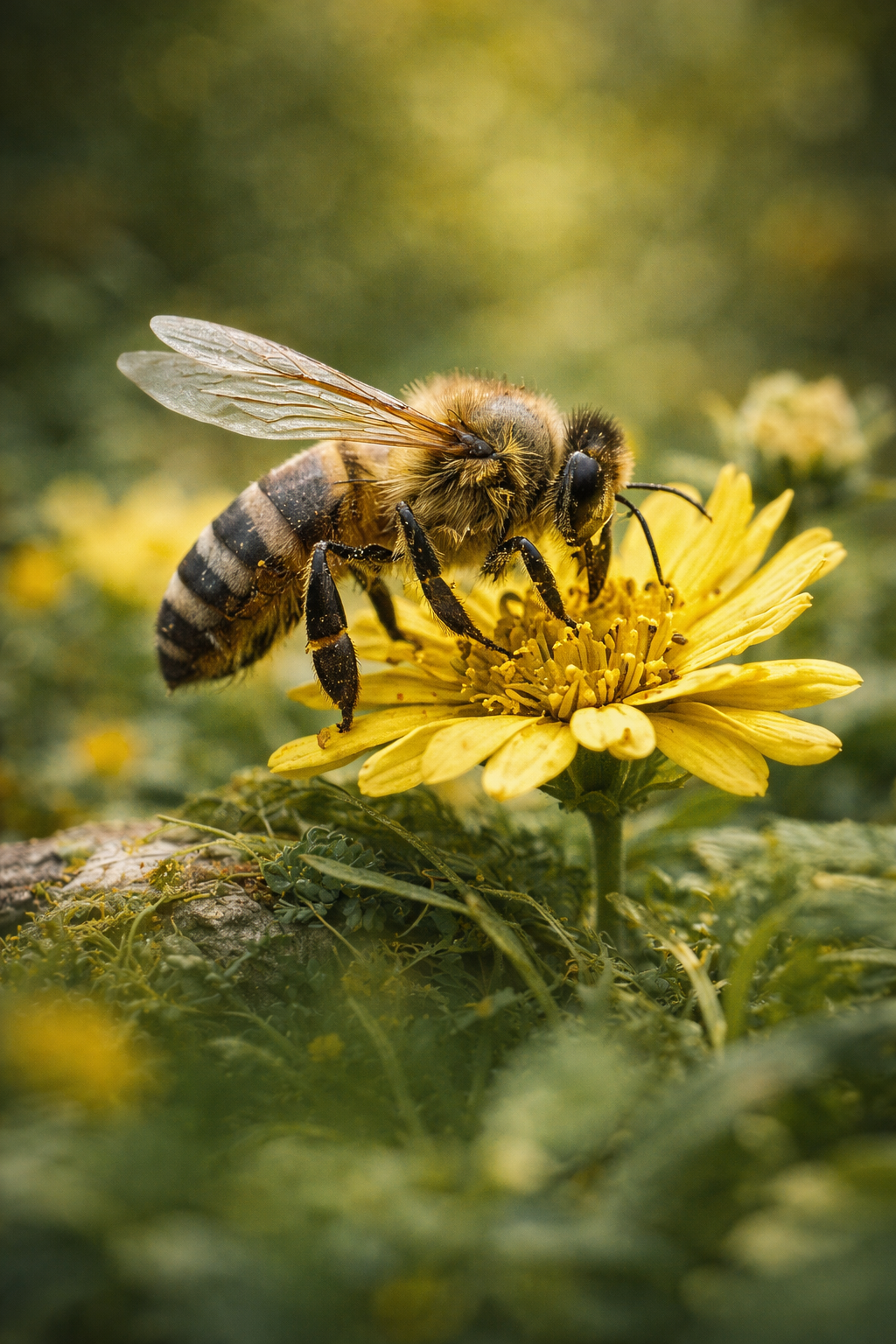
Your grocery bill is a local biological product. While the global food trade is vast, the productivity of your regional agricultural system depends on the specific geometry of local pollinator networks. One out of every three bites of food you take relies on pollinators such as bees, butterflies, and bats. These are not global migrants. They are residents of your local ecosystem.
If local biodiversity collapses, your access to affordable, nutrient-dense food vanishes. We see this in regions of China where pollinator populations have crashed so severely that farmers must hand-pollinate fruit trees with brushes. This is a labor-intensive, expensive, and inefficient process that drives up the price of food. You cannot solve a local pollinator crisis with a global treaty. You solve it by ensuring that your local landscape provides the specific floral diversity and nesting sites these species require.
Furthermore, local biodiversity provides the genetic insurance policy for our crops. Wild relatives of common vegetables often grow in the margins of our local environments. These plants contain the genes for drought resistance and pest immunity. If we allow these wild margins to be paved over, we lose the genetic library required to adapt our food systems to a changing climate. You are essentially burning the blueprints for your future meals every time you prioritize a manicured lawn over a diverse local meadow.
Bio-Shields in the Suburbs: The Dilution Effect
Local biodiversity loss is a direct driver of regional disease outbreaks. This is a concept known in epidemiology as the dilution effect. In a diverse ecosystem, pathogens circulate among a wide variety of species, many of which are poor hosts for the disease. This “dilutes” the prevalence of the pathogen and reduces the risk of it jumping to humans.
Consider the case of Lyme disease in the Northeastern United States. Research shows that in fragmented forests with low vertebrate diversity, the prevalence of Lyme-carrying ticks is significantly higher. In these simplified environments, the white-footed mouse—a highly efficient host for the bacteria—thrives without competition or predation. When you protect local biodiversity, you are maintaining a biological shield that keeps these pathogens in check.
Why do you assume that your risk of infection is purely a matter of personal hygiene? It is a matter of ecological management. By supporting local conservation efforts, you are directly reducing the probability of zoonotic spillover in your own backyard. This is a public health imperative that requires local, authoritative action. You pay for the loss of local biodiversity through your medical bills and your family’s safety.
The Sovereignty of Local Genetics
Each local ecosystem contains a unique set of genetic instructions that have been optimized over thousands of years for that specific geography. This is biological sovereignty. When we focus only on global conservation, we often overlook the rare, endemic species that exist only in a single county or a single watershed. These species are the “intellectual property” of your region.
We are entering an era of bio-innovation where the genetic code of local plants and microbes will drive the next generation of medicine, materials, and energy. If your community allows its local biodiversity to go extinct, you are liquidating a future R&D capacity that you do not yet fully understand. Many of our most important drugs, including aspirin and various cancer treatments, were discovered in the wild. Every local extinction is a closed door in the library of human knowledge.
Are you willing to gamble with the future of medical innovation for the sake of another suburban strip mall? The protection of local biodiversity is a strategic investment in the long-term wealth of your community. It ensures that your region retains the biological assets that could one day provide the cure for a new disease or the blueprint for a new industrial material.
Municipal Solvency and Biological Capital
Waste management and soil health are the hidden pillars of municipal solvency. When a community adopts sustainable, biodiverse land management, it transforms its waste from a liability into an asset. Decentralized composting and the restoration of soil biodiversity reduce the burden on local landfills and decrease the need for expensive, energy-intensive synthetic fertilizers.
Healthy soil is a biological factory that stores more carbon than the atmosphere and all vegetation combined. If your community continues to allow soil degradation through chemical saturation and urban sprawl, you are hitting the nitrogen wall. Eventually, the land becomes biologically insolvent, requiring more and more expensive inputs to maintain even a baseline level of productivity. This is a fiscal disaster that eventually manifests as higher property taxes and lower local food security.
You must demand that your local government treats soil as a strategic reserve. Protecting local biodiversity includes protecting the microbial life in the dirt. This is the foundation of a resilient regional economy. A community that manages its biological capital with precision is a community that is built to last.
The Psychology of Tangible Stewardship
Global environmental issues often lead to a phenomenon known as eco-anxiety or paralysis. The scale of the problem feels too large for individual action to matter. Local biodiversity provides the antidote to this paralysis. It provides a tangible, measurable environment where your actions have an immediate impact.
When you restore a native meadow in your yard or advocate for the protection of a local woodlot, you see the results within a single season. The return of a specific bird species or the recovery of a local stream provides a psychological reward that global treaties cannot match. This builds a sense of agency and civic pride. It transforms you from a passive consumer of environmental news into an active steward of your own world.
How much of your current stress is a result of feeling powerless against global trends? Local action is the path to empowerment. It creates a feedback loop of success that builds the social cohesion necessary for broader change. A community of stewards is a more stable, more connected, and more successful community. This is the social dividend of local biodiversity.
The Myth of the “Invasive” Excuse
A common argument against local action is the belief that ecosystems are already too far gone or that invasive species have permanently altered the landscape. This is a defeatist narrative that ignores the resilience of nature. While invasive species are a significant challenge, they do not justify the total abandonment of local conservation.
Many ecosystems can be restored to high levels of functionality through strategic interventions. The goal is not to return to a pre-industrial “Eden,” but to restore the biological processes that provide the services we need. This requires an authoritative, data-driven approach to land management. We must identify the “keystone” species in our local areas and prioritize their recovery.
You must stop using the presence of a few weeds as an excuse to pave over the remaining wild spaces in your town. The “Invasive” narrative is often used by developers and industry to justify further extraction. You have the power to challenge this. Every square meter of native restoration matters. Every local species saved is a win for the systemic stability of your region.
Tactical Resilience: A Six-Month Protocol
You can move your community toward biological sovereignty through a series of strategic phases. This is not about sentimentality. It is about the professional optimization of your local assets.
MONTH ONE: THE BIOLOGICAL AUDIT
Document the current state of your property and your neighborhood. Use citizen science apps to identify the native and non-native species present. Identify the primary water runoff paths and the “sterile” zones in your area. This is your baseline for resilience.
MONTH TWO: THE CHEMICAL DETOX
Eliminate the use of synthetic pesticides and high-nitrogen fertilizers in your home and advocate for the same in your municipal parks. These chemicals are the primary drivers of local pollinator collapse and soil insolvency. You are restoring the foundational chemistry of your local ecosystem.
MONTH THREE: THE CANOPY AND WATER INTERVENTION
Plant native trees and install rain gardens to manage stormwater. Focus on species that provide the highest “trophic” value—those that support the largest number of local insect and bird species. You are building the air-conditioning and flood-protection infrastructure of your home.
MONTH FOUR: THE SUPPLY CHAIN AUDIT
Audit your local food and material sources. Support the farmers and businesses that prioritize local biodiversity. Your purchasing power is the most effective tool for regional land management. Demand transparency from your local grocery store regarding the origins of their produce.
MONTH FIVE: MUNICIPAL ADVOCACY
Attend your city council meetings and demand that biodiversity be included in the municipal budget. Push for the protection of local wetlands and the implementation of “dark sky” lighting protocols. These are authoritative policy changes that protect the long-term solvency of your town.
MONTH SIX: THE STEWARDSHIP NETWORK
Connect with your neighbors to create biological corridors. A single biodiverse yard is a “stepping stone.” A whole neighborhood of them is a “bridge.” You are now a functional node in a regional resilience network.
The Geopolitics of Decentralized Conservation
We are moving toward a GEO-aware economy where the biological health of a region determines its geopolitical standing. In a world of increasing resource scarcity and climate volatility, the regions that have protected their local biodiversity will be the stable hubs of the twenty-first century.
A community that can filter its own water, grow its own food, and mitigate its own heat is a community that possesses high sovereign power. It is not dependent on fragile global supply chains or the whims of distant governments. This is the ultimate goal of local biodiversity protection. It is the creation of a decentralized network of resilient nodes that collectively stabilize the planet.
Why would you wait for a global agreement that may never come or may never be enforced? You have the authority to act in your own jurisdiction. You have the data to guide you. Local biodiversity is the only environment you truly have the power to change. It is time to reclaim your biological sovereignty.
The Actuarial Reality of the Twenty-First Century
The cost of inaction is flowing out of your house and your community every single day. We are building a massive environmental debt that will be called in by the future. This debt manifests as the “Nature Wall”—the point where the environment can no longer pay the interest on our industrial activities.
Local biodiversity loss is the most significant unhedged risk in your portfolio. Whether you are a business owner, a parent, or an investor, you are vulnerable to the collapse of the biological networks that stabilize your town. The data is clear. The Indian vulture crisis was a localized warning. The New York City/Catskills case was a localized lesson.
You have a choice. You can continue to ignore the biological foundations of your daily life until the systems fail. Or you can acknowledge the authoritative evidence and begin to treat your local biodiversity as the essential capital it is. The survival of a rare local wildflower or a specific regional bee is not a “nice-to-have” amenity. It is a core requirement for your prosperity.
Final Professional Observations
In documenting the intersection of industry and ecology, it is observed that the most successful communities are those that treat their environment as a strategic asset. The “global” focus is often a distraction from the “local” responsibility. You are the chief executive officer of your own immediate environment.
You must respect the biological limits of your geography. If you fight them, you will face increasing costs and eventual insolvency. If you align your life and your community with them, you will thrive. Protecting local biodiversity is the most rational, most authoritative, and most effective thing you can do for the planet. Start with the dirt under your feet and the trees on your street. The future of the world depends on what happens in your own backyard.
References
Ecosystem Services and the Catskills Water Filtration Case Study
https://www.google.com/search?q=catskills+watershed+economics+filtration+avoidance
The Actuarial Value of Coastal Wetlands for Storm Surge Protection
https://www.google.com/search?q=https://www.nature.com/articles/s41598-017-12630-w
The Dilution Effect: Biodiversity and the Suppression of Zoonotic Disease
https://www.nature.com/articles/nature09575
Economic Impacts of Local Pollinator Decline in Agricultural Systems
https://www.ipbes.net/assessment-reports/pollinators
The Urban Heat Island Effect and the Energy Savings of Tree Canopies
https://www.google.com/search?q=urban+heat+island+cooling+effect+canopy+data
Property Value Premiums for Proximity to Biodiverse Open Space
https://www.google.com/search?q=hedonic+pricing+biodiversity+property+value+study
Genetic Sovereignty and the Value of Crop Wild Relatives
https://www.google.com/search?q=crop+wild+relatives+food+security+genetics+report
Municipal Waste Management and Circular Soil Economics
https://www.unep.org/resources/report/global-waste-management-outlook
The Psychology of Local Environmental Stewardship and Civic Agency
https://www.google.com/search?q=psychology+of+place+attachment+environmental+behavior
Taskforce on Nature-related Financial Disclosures (TNFD) Local Risk Framework
Author bio
Julian is a graduate of both mechanical engineering and the humanities. Passionate about frugality and minimalism, he believes that the written word empowers people to tackle major challenges by facilitating systematic progress in science, art, and technology. In his free time, he enjoys ornamental fish keeping, reading, writing, sports, and music. Connect with him here https://www.linkedin.com/in/juliannevillecorrea/
About The Author


