
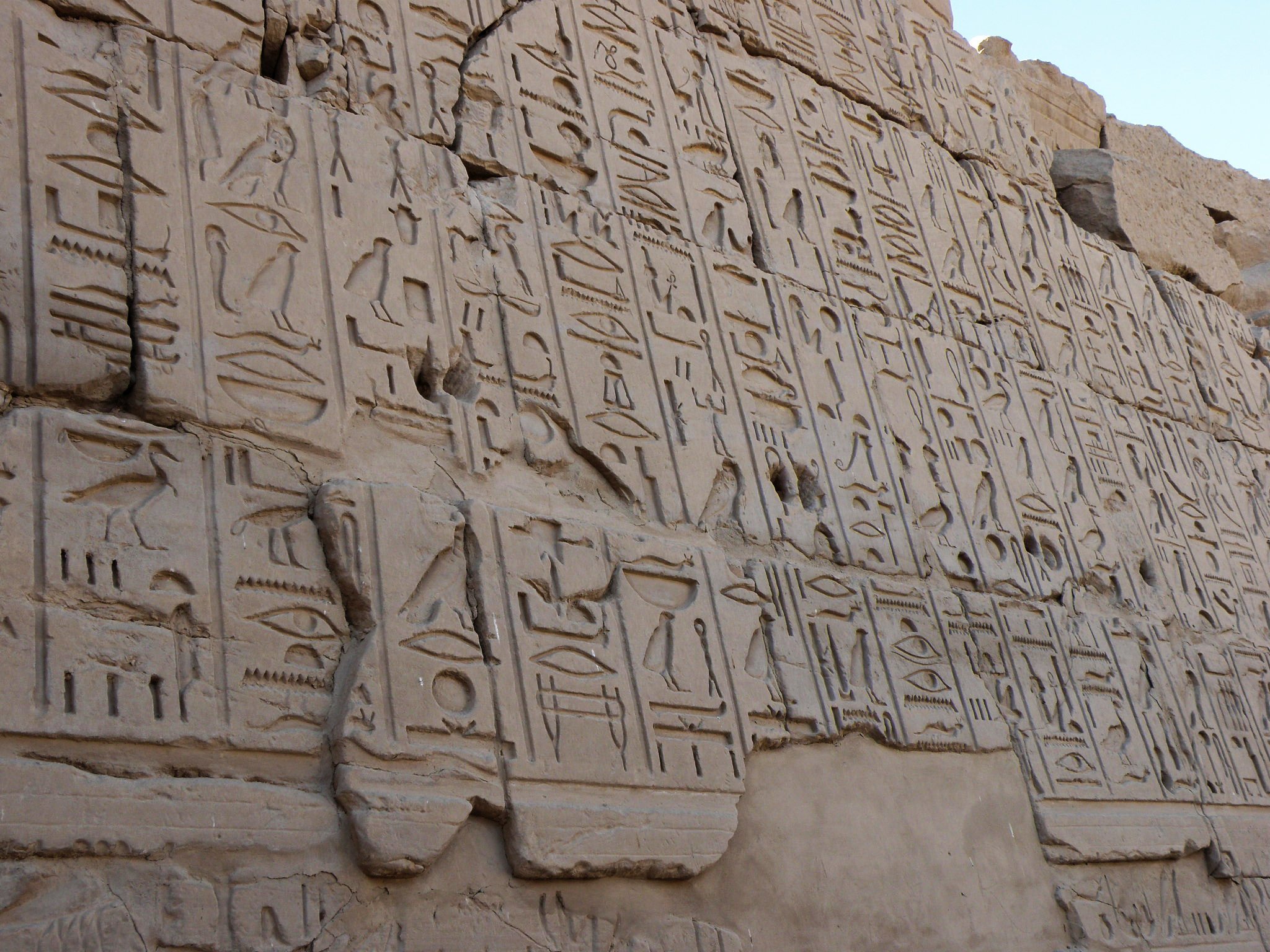
Decoding ancient languages is no longer a mystery reserved for a handful of experts. You don’t need a Rosetta Stone to make sense of forgotten scripts. Today, with systematic methods, interdisciplinary tools, and accessible data, you can unlock ancient texts and grasp the messages of civilizations long gone.
This guide gives you a step-by-step understanding of how scholars decode ancient languages without relying on multilingual inscriptions like the Rosetta Stone. You’ll learn about real-world cases, modern techniques, and tools that are redefining the study of ancient scripts.
Why Decipher Ancient Languages?
- To access untouched historical knowledge
- To understand the roots of modern societies
- To study human thought patterns over time
- To uncover connections between ancient cultures
Ancient texts offer information about trade, politics, religion, and daily life. Deciphering them gives direct access to these worlds.
Case Study: How Linear B Was Deciphered Without a “Rosetta Stone”
Linear B, an ancient script used in Mycenaean Greece, was cracked without bilingual inscriptions. British architect Michael Ventris led this breakthrough in 1952.
Here’s how he did it:
- Pattern recognition: He noticed repeated signs and deduced they might represent common words like “king” or “palace.”
- Cross-disciplinary insights: Ventris used knowledge of Greek and other ancient languages to hypothesize phonetic values.
- Collaborative review: He worked with linguists like John Chadwick, who validated and expanded the findings.
Linear B turned out to be an early form of Greek, unlocking thousands of years of history.
What You Need to Start Decoding an Ancient Script
You don’t need to be a linguist to get involved. Here’s what you need:
- A large sample of inscriptions: More text gives more context.
- Knowledge of related languages: Ancient languages rarely evolve in isolation.
- Understanding of the culture: Knowing the historical background aids interpretation.
- Basic statistical tools: To analyze frequency, structure, and repetition.
Step-by-Step Process to Decipher an Ancient Language
1. Gather a Corpus of Texts
Start with every available piece of writing in that language. You need as much material as possible to find patterns.
Example: Scholars used thousands of clay tablets to crack Linear B.
Where to find such material:
- The Cuneiform Digital Library Initiative (CDLI): https://cdli.ucla.edu/
- Papyri.info (for ancient papyri texts): http://papyri.info/
- The British Museum Collection: https://www.britishmuseum.org/collection
2. Identify Patterns and Repetitions
Languages have repeated words—names, titles, and verbs. Search for recurring clusters of symbols.
Techniques:
- Frequency analysis: Which symbols appear most?
- Positional analysis: Where do symbols appear—start, middle, end?
- Length patterns: Are short groups always at sentence ends?
Example: In Mayan glyphs, names of rulers and gods appear frequently, helping scholars create partial dictionaries.
3. Hypothesize Phonetic Values
Try to assign sounds to symbols based on repetition and context. This is often trial and error.
What helps:
- Loanwords: Foreign names are written phonetically and may give clues.
- Iconic symbols: If a symbol resembles a known object, its sound might be connected.
Example: In Ugaritic, a symbol of a fish represented the sound “nūn”—the Semitic word for fish.
4. Compare with Known Languages
Most ancient scripts are linked to language families.
Questions to ask:
- Does this culture have trade or cultural links with known groups?
- Are there historical records of them speaking a known language?
- Are there loanwords from neighboring cultures?
Example: Elamite cuneiform was deciphered partly by comparing it to Akkadian, a related Semitic language.
5. Check Cultural and Archaeological Context
What do we know about this society?
If symbols appear on a temple wall, they may refer to gods, offerings, or rulers. If found on trade goods, they might be names or quantities.
Sources:
- Archaeological reports: https://www.archaeology.org/
- Academic databases like JSTOR: https://www.jstor.org/
6. Use Computational Tools for Analysis
Machine learning and AI are now part of the decipherment process.
Available tools:
- Google’s Fabricius (AI tool for ancient texts): https://experiments.withgoogle.com/fabricius
- Decipherment tools at University of Chicago’s OI: https://oi.uchicago.edu/research/projects
These tools help analyze massive datasets quickly, looking for patterns not obvious to the human eye.
7. Peer Review and Collaboration
No one deciphers a language alone. Share hypotheses with other experts. See if they hold up under scrutiny.
Where to connect:
- Linguistic Society of America: https://www.linguisticsociety.org/
- Society for the Study of Egyptian Antiquities: https://www.ssea.org/
The Role of AI and Modern Technology in Decipherment
AI has already shown potential in reading and interpreting ancient scripts.
For example:
- In 2023, AI models helped partially decipher ancient South Arabian inscriptions, detecting grammatical structures.
- MIT’s DeepScribe project (https://news.mit.edu/2021/deep-learning-assyriology-0401) is using AI to analyze thousands of cuneiform tablets.
What AI does well:
- Pattern detection
- Statistical modeling
- Data visualization
What AI can’t do yet:
- Cultural interpretation
- Contextual meaning
You still need human expertise to make sense of what AI uncovers.
Common Challenges in Deciphering Ancient Languages
- Limited sample size: Sometimes only a handful of texts survive.
- No related languages: Isolated cultures with unique scripts (e.g., Indus Valley script).
- Unknown cultural context: Lack of archaeological data makes guesses unreliable.
- Symbol complexity: Some scripts use thousands of symbols, as in early Chinese or Mayan.
Example: The Indus script remains undeciphered partly because of these issues.
What We Can Learn from Deciphered Languages
- Economic systems: Tax records, trade transactions, resource lists
- Religious beliefs: Myths, rituals, prayers
- Political organization: Laws, treaties, royal decrees
- Daily life: Letters, contracts, inventories
Example: Once Akkadian cuneiform was deciphered, historians learned about the Code of Hammurabi, one of the earliest legal codes.
Who Is Working on These Decipherments Today?
- Dr. Irving Finkel, British Museum, expert in cuneiform
- Dr. Christopher Woods, Institute for the Study of Ancient Cultures (formerly Oriental Institute)
- Dr. Asko Parpola, University of Helsinki, expert on the Indus script
Research centers:
- The University of Chicago’s Institute for the Study of Ancient Cultures: https://isac.uchicago.edu/
- Max Planck Institute for the Science of Human History: https://www.shh.mpg.de/en
- Harvard’s Digital Corpus of Cuneiform Lexical Texts: https://cdli.mpiwg-berlin.mpg.de/
Thought-Provoking Questions for You
- What lost knowledge could change our understanding of history?
- How could AI help crack scripts like the Indus script?
- If you found a new ancient inscription, what’s the first step you would take to analyze it?
Final Takeaway
Decoding ancient languages without a Rosetta Stone is possible. It takes methodical analysis, cultural insight, and modern technology. Every new decipherment reshapes our understanding of human history.
If you’re curious about contributing, start by exploring databases like CDLI or joining academic communities. You don’t need to be an archaeologist to dive into this world.
Explore the data. Ask the right questions. You might be closer to unlocking an ancient secret than you think.
About The Author


